| GDT Builder |
 |
Hello Greg,
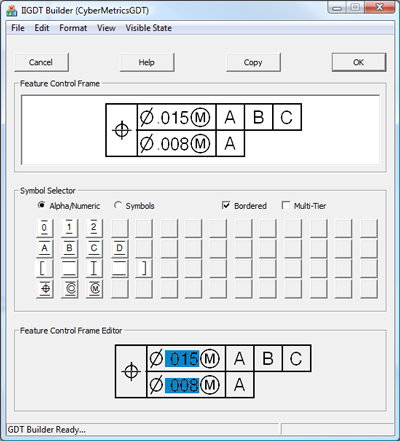
The basic layout of the GDT Builder is a sungular popup tool
that provides access to all symbols and structure for the user
to build a DFR.
The layout is broken into three sections:
•Feature Control Frame
•Symbol Selector
•Feature Control Frame Editor
The operator interacts with the top bottom two section to build
or edit a DFR. |
|
|
|
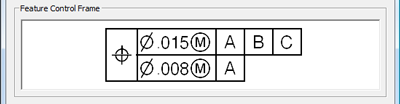 |
Feature Control Frame
The top section is a visual representation of the text that will
be placed into their document. This section is do directly user
adjustable. It compiles in information from the lower sections
only. |
|
|
|
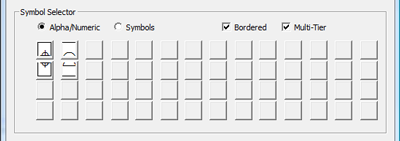 |
Symbol Selector
This is a the clik-n-insert section wher the operator builds the
frame manually, one character at a time.
The Symbol Selector is configured to show Alpha/Number or
Symbols based on the bullet selection. Additionally, a character
canb be part of a frame that requires single row or multi-tier
frame barders. This are added when the appropriate check is
active.
Belkow is a more details description of the various example. |
|
|
|
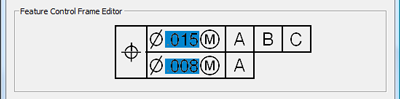 |
Feature Control Frame Editor
This section is a interactive tool that is built upon the basic
input from section 2 when the user clicks a button. It
highlights aditable values which the user can click to open a
Data Entry tool to type a value in directly. |
|
|
|
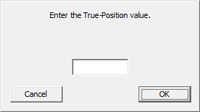 |
Data Entry
Tool
This tool is displayed when the user clicks on highlighted data
inside the Feature Control Frame Editor.
The Data Entry tool is passed certain parameters such as single
row, mutli tier, with or without borders. The user enters a new
value and it is inserted into the highlighted section of the
editor. |
|
|
|
 |
GDT
Builder Roll-Up Mode
As a convenience, the GDT Builder can be "Rolled UP" into a menu
onlu version. This allows the tool to remain on the display, yet
out of the way waiting for it's next usage. |
|
|
|
|
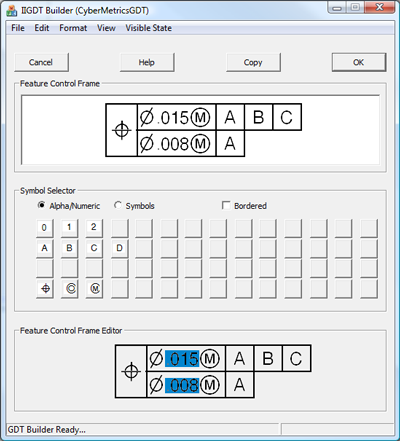
Detailed description of Symbol
Selector |
 |
No
Border filtering
The "No Border" option is active when the checks for:
Bordered
Multi-Tier (not shown)
The top row is the number 0...9.
The next two rows will be the characters A...Z in all caps.
The lower rows will make available the symbols available ina
no-border format.
NOTE: The example at the right shows 14 buttons wide, but in the
final version, it maybe closer to 20 to accomodate all
characters. |
|
|
|
|
|
Borders Active
This option is similar to that of the no border, acept vthe user
placed a check against "Bordered".
The available characters will be shown with the borders shown on
the appropriate sides.
Of special note, is the inclusion of border only choices which
are also shown in logical order. |
|
|
|
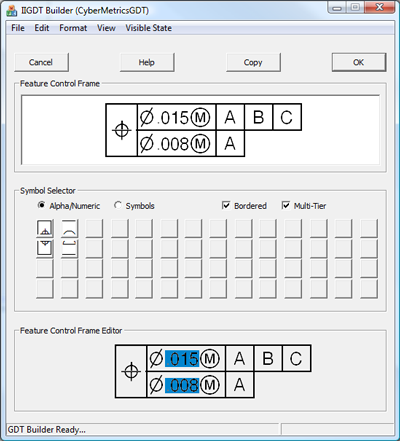 |
Multi-Tier
Multi-Tier remapps the controls in the Symbol Selector to
present all characters and symbols available to add when
including a multiple row solution.
Each symbols is presented in a over and under choice, but
selecting either choice actually build the entire two row
symbol.
For example, if the operator clicked the composite true position
(top half) choice, the editor would populate the upper and lower
half of the symbol. |
|
|
|
|
GDT Builder Options |
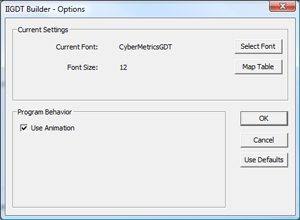 |
User defined options
The GDT Builder will offer various options to contraol the
bahavior of the ditting tools. Currently there are 4 available
options the user can adjust.
Current Font: As it sounds, the user can choose from installed
fonts the one to be used by the GDT Builder. This allows the use
of future releases and even other GDT fonts.
Font Size: Sets the basic size of the exported text.
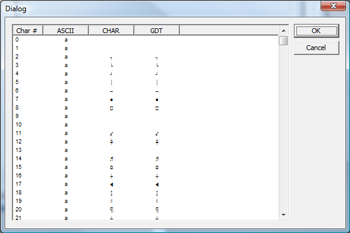
Map Table: Produces a look-up table of characyers in the GDT
font with the expected ASCII value used by the GDT Builder,
see below for further details.
Program Behavior, Use Animation: This controls to "Rol-Up" mode
of the GDT Builder when switching between full and reduced
sizes. Important only for slower systems where the animation
used to perform the roll-up would result in "jerky" motion.
NOTE: Other otion will be added as development advances. |
|
|
|
 |
Font
Mapping
Not all fonts are mapped to the same location within a typeface
file. The GDT Builder will display and insert a character from a
know loaction only.
To accomodate a wide variety of font files, this mapping tool
provides the operator to select the proper mating choice from a
typeface file. For example, if the bordered capital A is at the
ASCII position 65 in the IIGDT Typeface, but is at 61256 in the
competitor typeface, this mapping table will link the 61256 to
the 65 position when used. |
|
|
|
